Settings admin
Use Settings: Approvals when you need to approve users
Approvals is the admin queue for user access, trials, limits, and status review.
Problem / use case
If you need to approve users, Settings: Approvals becomes fragile when the work behind open Settings, then Approvals as an admin. and Review pending or active users. is separated from Billing, Messaging analytics, and AI usage.
What should be done conceptually
Settings: Approvals works best when the settings admin decision, next action, and progress evidence stay close enough for approve users to remain visible.
TimeLens solution
TimeLens solves that by making Settings: Approvals part of the same workspace as Billing, Messaging analytics, and AI usage, so the feature helps the work move instead of becoming another isolated page.
Actual app screen
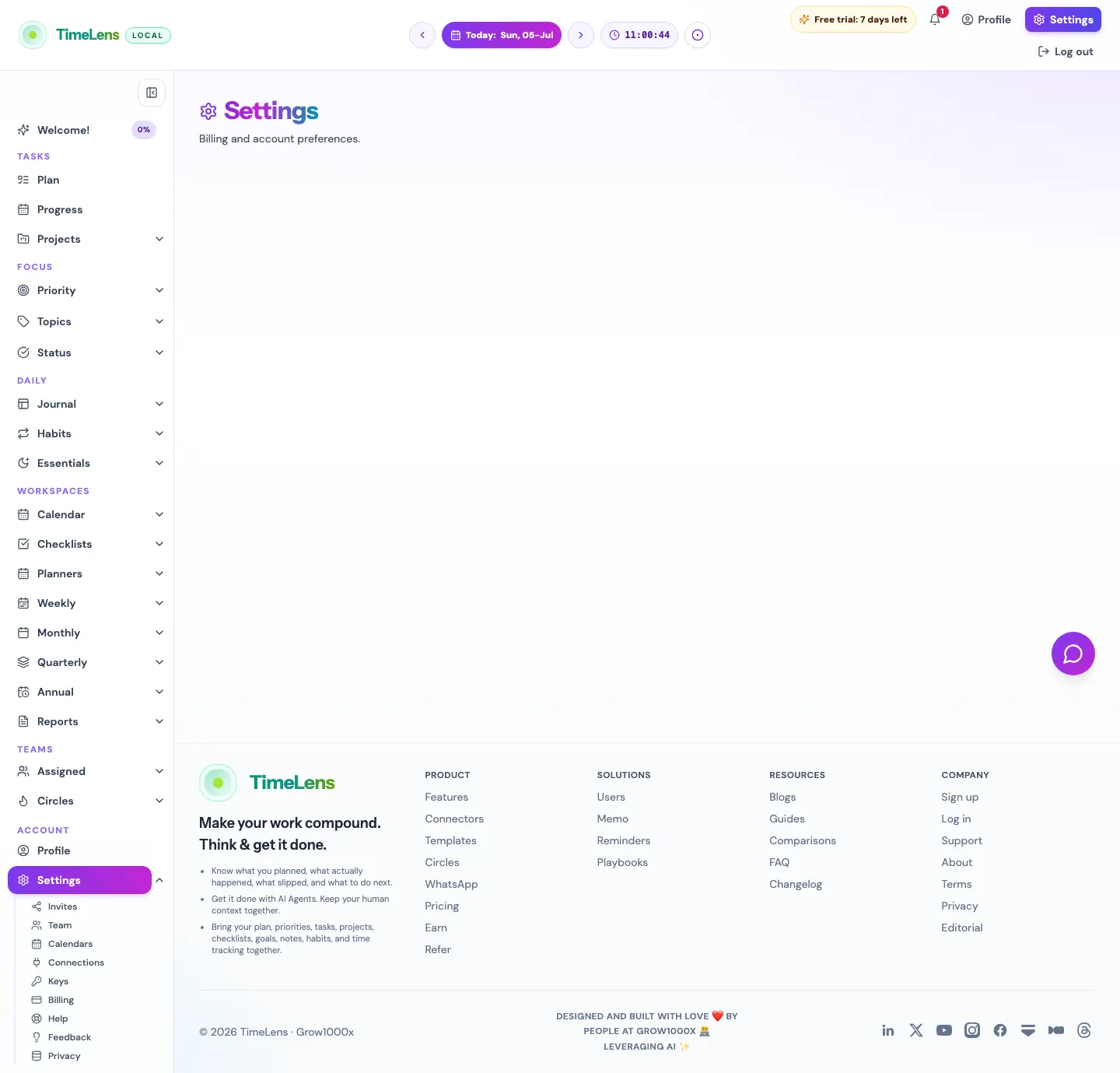
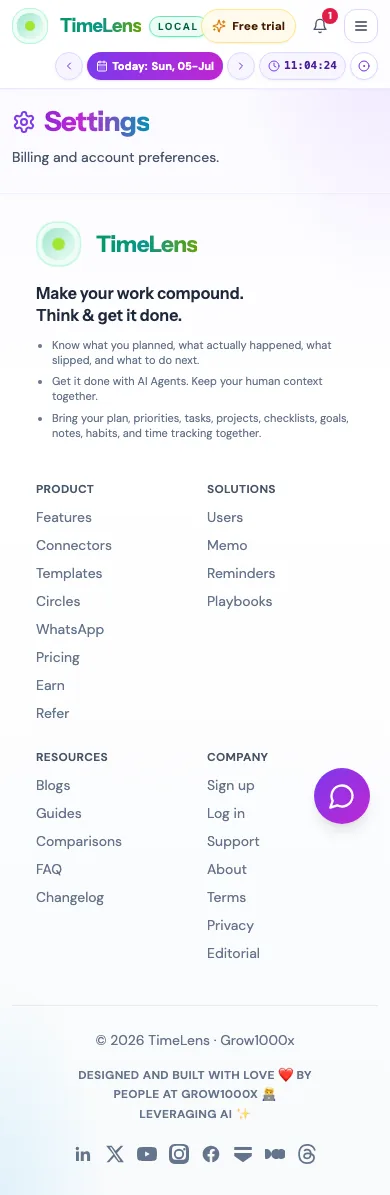
The public guide links to the real TimeLens route instead of showing a recreated mockup. Open the linked TimeLens screen to see the same route in action.
Actual product snapshots
How to use it in TimeLens
Open Settings, then Approvals as an admin.; Review pending or active users.; Update access, limits, or status using the page controls.
What it helps with
Approve users; Review trial state; Adjust account limits
Where this feature connects
Billing; Messaging analytics; AI usage
Open this in TimeLens
This guide covers an admin-only product surface. Admins can open the matching TimeLens menu item after signing in.
Open Settings: Approvals · Sign up · Feature guide directory
Related feature pages
Continue with the most relevant TimeLens guide pages for this workflow.
Settings: Billing · Settings: Messaging · Settings: Usage · Settings: Week