Focus
Use Topics when the same theme keeps showing up across many separate days
A Topic is a free-text theme label - the same field is called "Topic" on priority rows and "category" on tasks and meetings - that groups related plan rows and tracked time across every day instead of only the one they were added on.
Problem / use case
Work that belongs to one theme rarely happens on one day. A marketing push, a client account, or a health routine shows up as scattered rows across weeks of Daily Plan, so there is no single place to see how much attention that theme is actually getting, or whether it is slipping.
What should be done conceptually
The useful pattern is to give a recurring theme one durable label instead of re-sorting history by hand every time you want to check on it. Once a row carries that label, every page that already tracks time and tasks can group by it automatically.
TimeLens solution
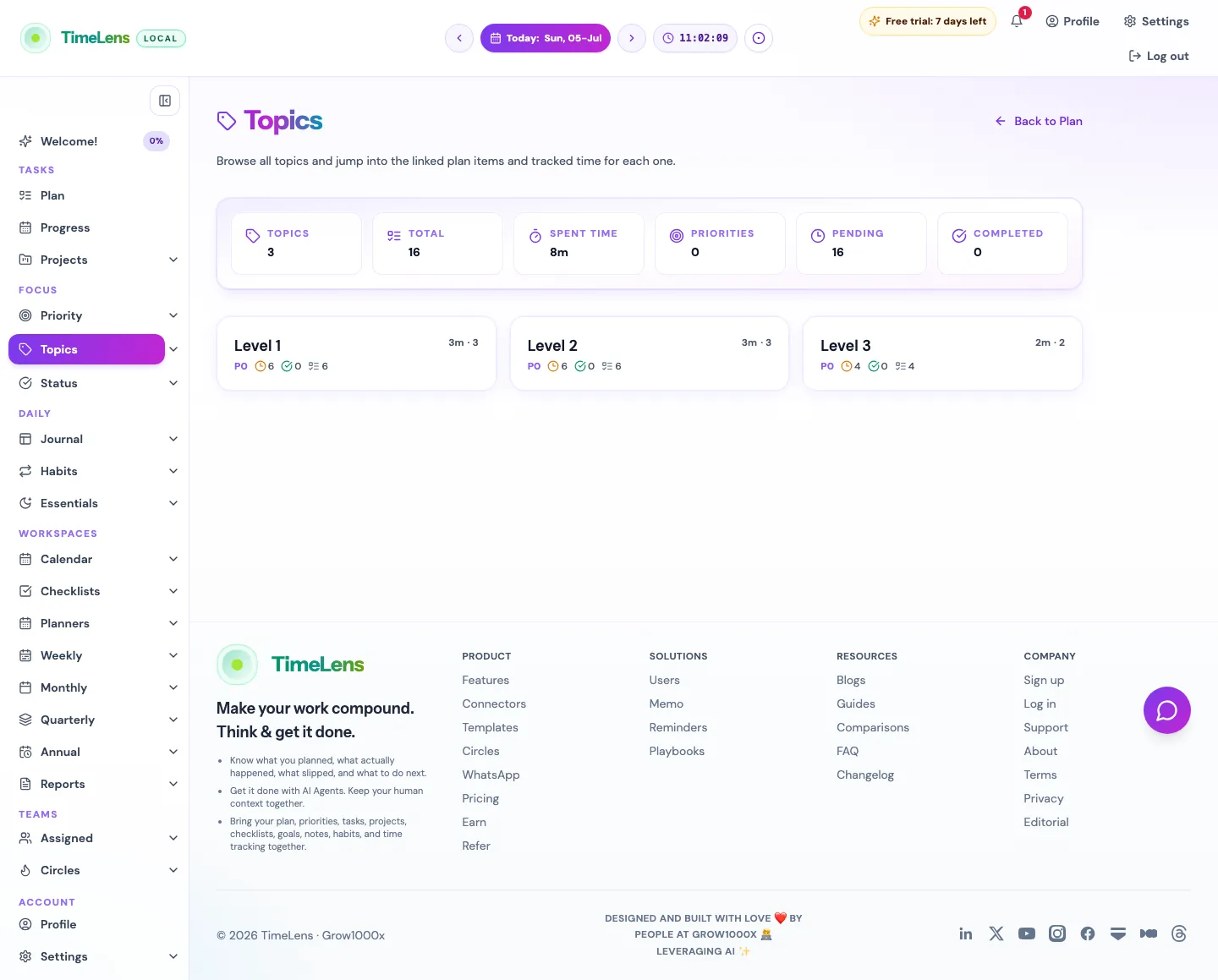
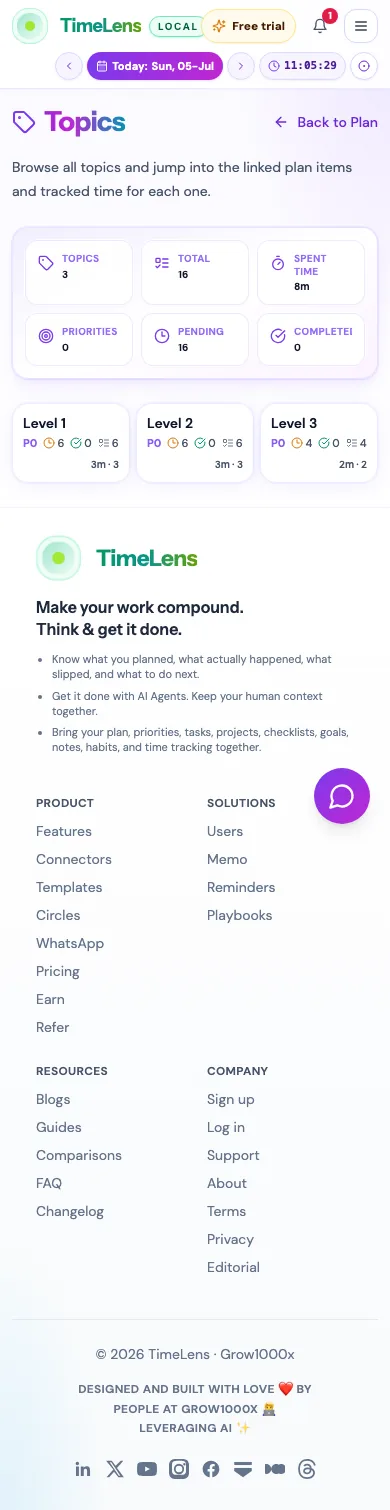
TimeLens solves that with a lightweight Topic field on priorities, tasks, and meetings. Typing a topic on any Daily Plan row is enough to create it - no separate setup screen. Focus Topics, task detail, the Today tracked-time card, project checklists, and report heatmaps all read the same label.
Actual app screen
The public guide links to the real TimeLens route instead of showing a recreated mockup. Open the linked TimeLens screen to see the same route in action.
Actual product snapshots
How to use it in TimeLens
Add a Topic on any priority, task, or meeting row in Daily Plan - typing a new value creates that topic instantly.; Open Focus, then Topics, to see every topic as its own card with its rows and tracked time grouped underneath it.; Open a topic to browse its Priority, Tasks, Later, Misc, Backlog, and Archive buckets, or drill into task detail for notes, links, comments, and assignment.; Check the Today tracked-time card or the Reports heatmap (one row per topic) to see how many hours each theme pulled across the week or month.
What it helps with
Separate product, sales, ops, and personal work without creating new projects or folders; See which theme is quietly eating the week before it becomes a pattern; Group a project checklist’s backlog tasks by topic so related work stays together
Where this feature connects
Daily Plan; Task detail; Today (tracked time); Project checklists; Reports heatmaps
Open this in TimeLens
Open the matching TimeLens menu item after signing in, or create an account to start from the same workspace.
Related feature pages
Continue with the most relevant TimeLens guide pages for this workflow.
Daily Plan · Task detail page · Project checklists · Reports analytics